Session Pinning
Pin important sessions to the top of your session list so you can find them quickly without searching.
Overview
Session pinning lets you mark any session as "pinned" — it moves to a dedicated Pinned section above your Recent sessions, regardless of how old it is. This is useful for:
- Active feature branches you switch between throughout the day
- Long-running investigations or debugging sessions
- Sessions with important context you want to keep accessible
Pinning a Session
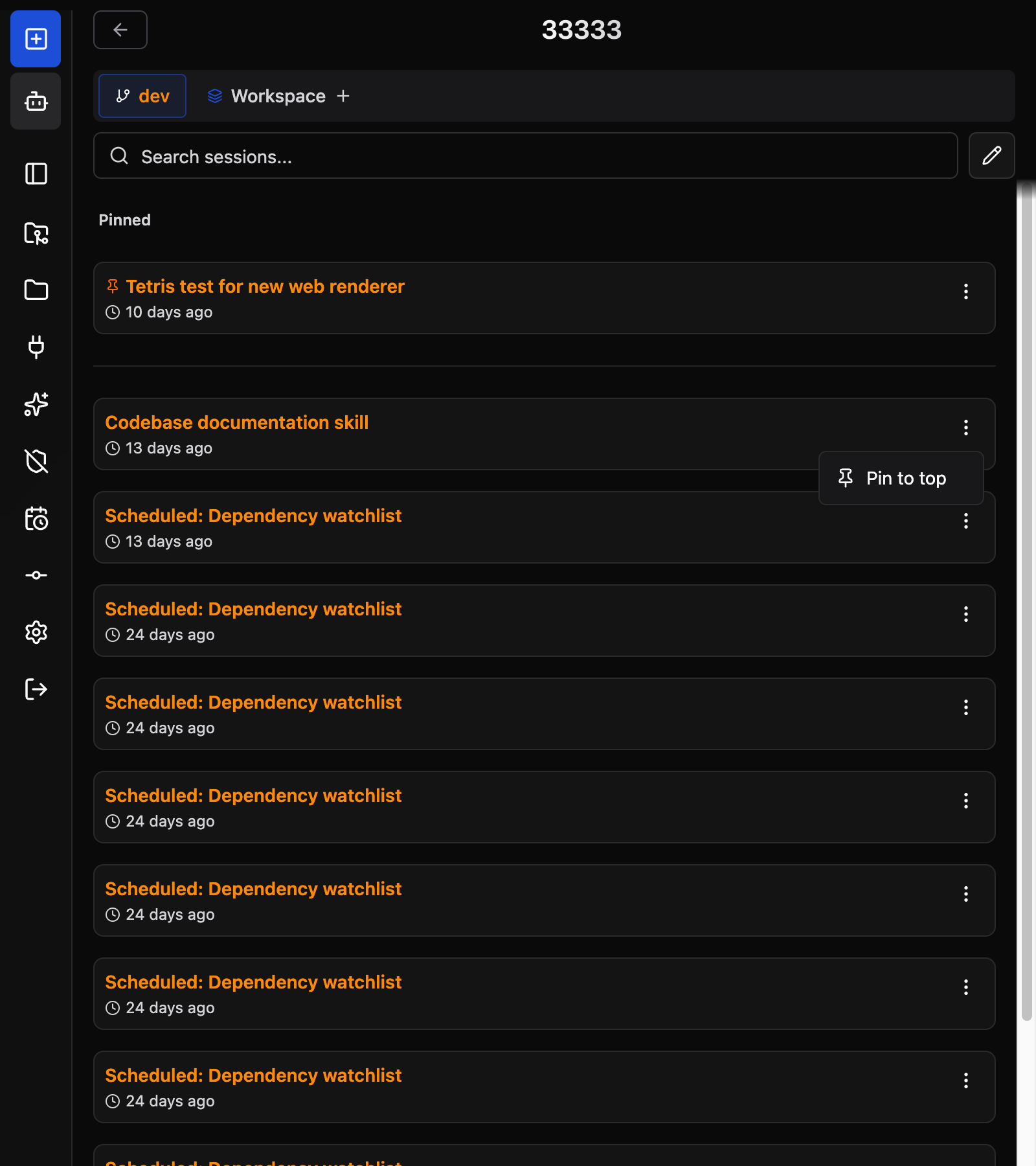
Each session card has an actions menu (three dots or swipe gesture); the first entry toggles pinning:
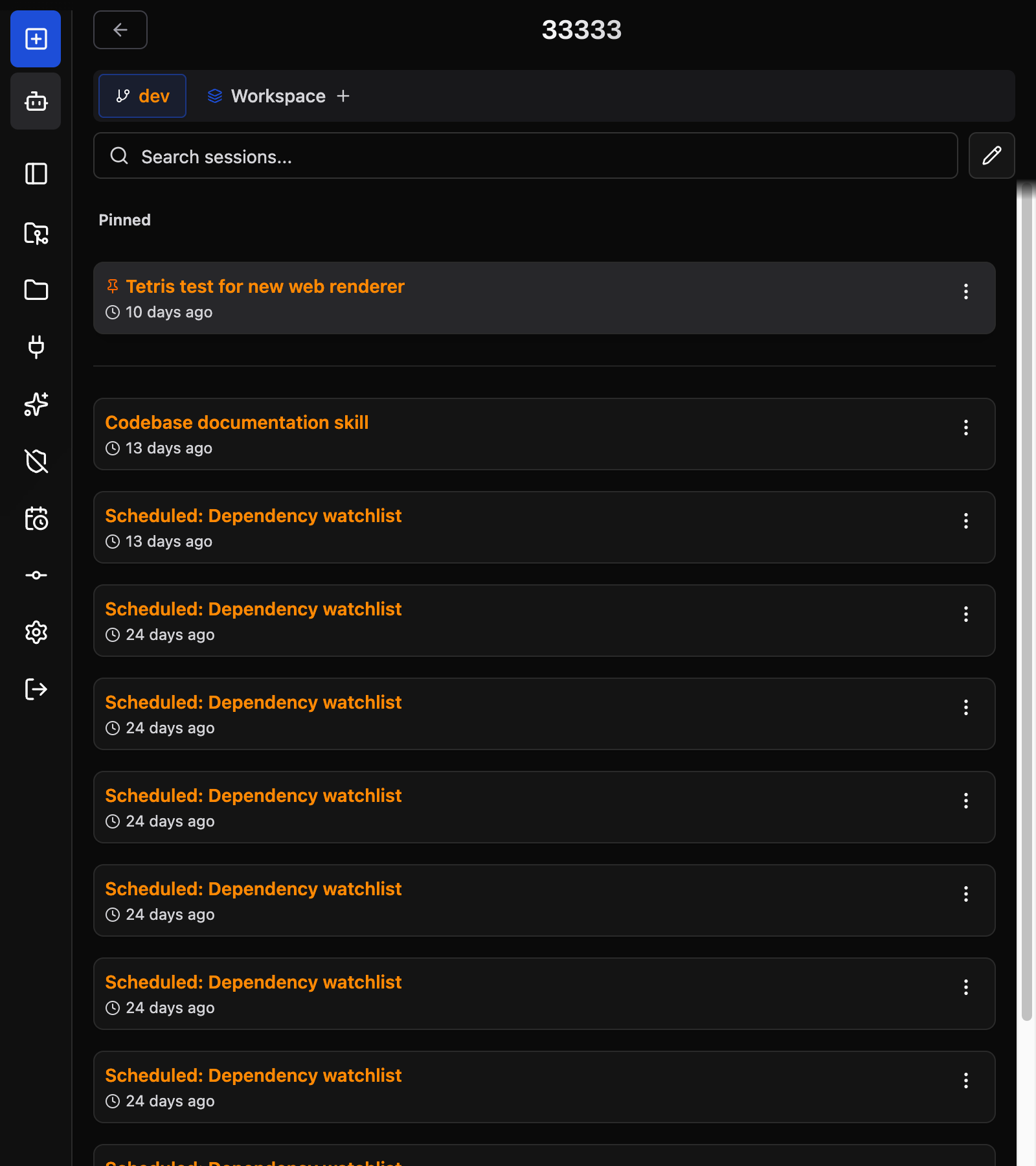
The pinned session appears in a Pinned section above the Recent section. Unpinned sessions stay in Recent sorted by last activity.
Pin state persists across page reloads and browser sessions. Pinned sessions remain at the top until you unpin them.
Managing Pins
| Action | How |
|---|---|
| Pin a session | Open the session actions menu and select Pin to top |
| Unpin a session | Open the session actions menu and select Unpin — it moves back to the Recent section |
| Bulk operations | Pin/unpin is per-session. Bulk delete and other management tools work as normal on pinned sessions |
What Happens When a Pinned Session is Deleted
If a pinned session is deleted (manually or by context cleanup), it is removed from the Pinned section automatically. No stale pin entries remain.
Notes
- Pinning is independent of session activity — a pinned session stays pinned even when new sessions push older ones out of the Recent view.
- The Pinned section supports any number of pinned sessions.
- Pinning is stored server-side in the Manager and is Manager-wide rather than per-user, so the same pins are shown on every device and browser.