Repository & Git
Comprehensive git integration for managing repositories and source control.
Cloning Repositories
Clone any git repository:
- Click the Repositories button in the sidebar
- Click Clone Repository
- Paste the repository URL
- Click Clone
Discovering Existing Repositories
Import repositories you already have on disk without recloning them:
- Click the Repositories button in the sidebar
- Click Add Repository
- Select Folder Discovery
- Enter a parent folder such as
/Users/you/Development - Click Discover Repositories
OpenCode Manager scans that folder for nested git repositories and links each one into the workspace. If standalone OpenCode already has chats stored for those same paths, the sessions show up automatically.
Private Repositories
For private repositories, configure a GitHub Personal Access Token:
- Go to Settings > Git > Credentials
- Enter your GitHub PAT
- Ensure the token has
reposcope
SSH Repositories
SSH key authentication added for git repositories. Configure SSH keys in Settings > Git > Credentials.
Git Worktrees
Work on multiple branches simultaneously without switching:
- Select a repository
- Click Create Worktree
- Enter branch name
- A new workspace is created with that branch checked out
Worktrees share the same git history but have independent working directories. This is useful for:
- Comparing implementations across branches
- Working on a feature while keeping main branch accessible
- Testing changes without disrupting your main work
Source Control Panel
Access comprehensive git operations via the source control button.
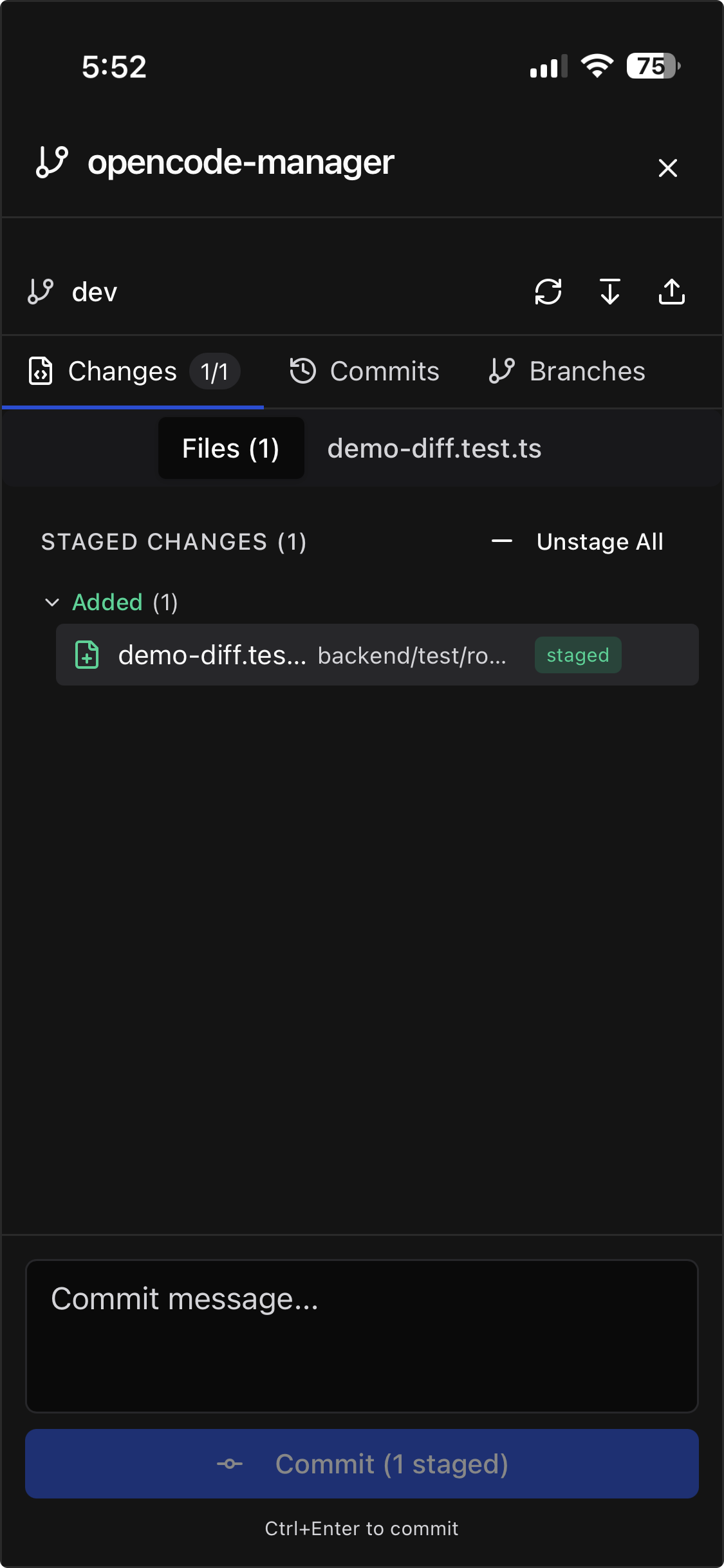
Changes Tab
- View all modified, added, deleted, and untracked files
- Stage/unstage individual files or all changes
- Discard changes to revert modifications
- View diffs inline for any changed file
Commits Tab
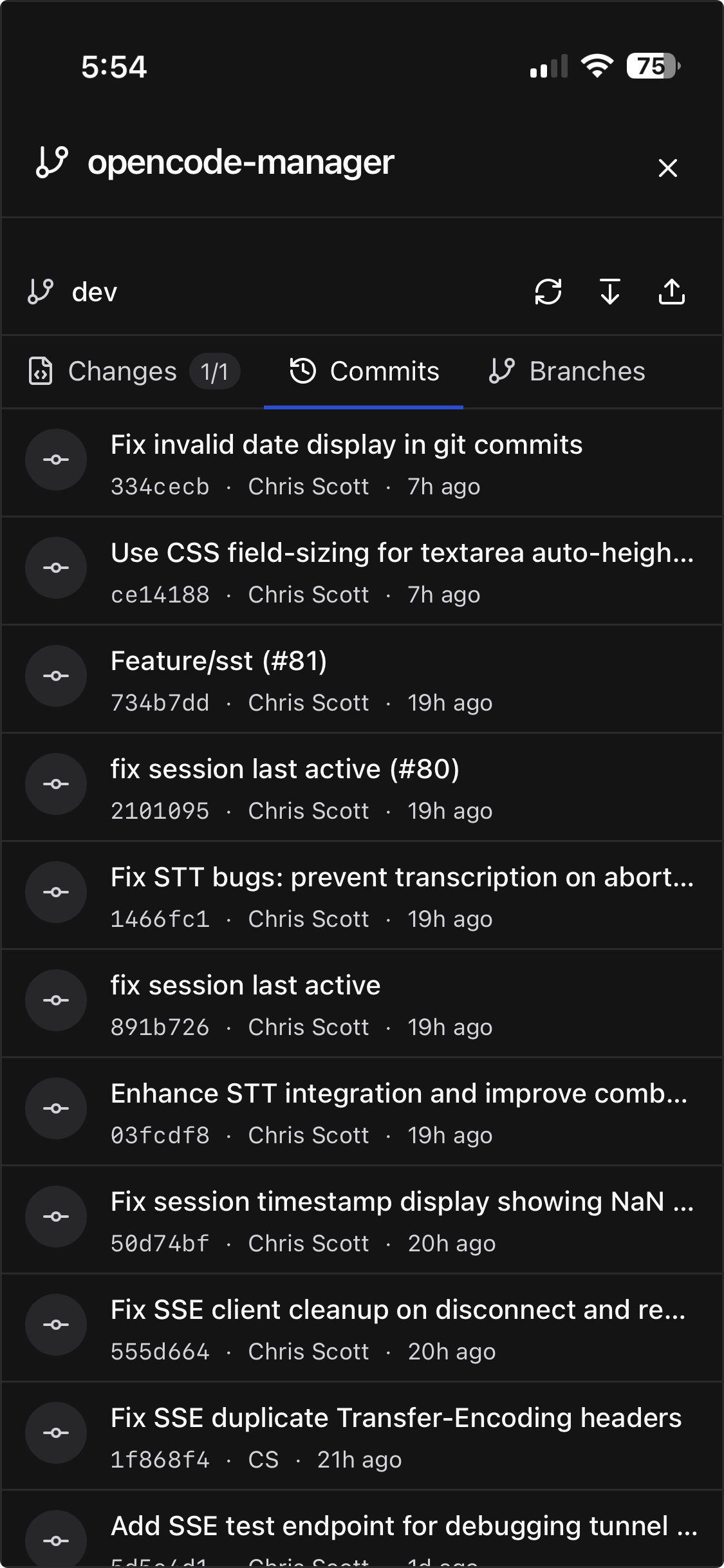
- Browse commit history
- View commit details including message, author, and date
- See file changes in each commit
- Track ahead/behind status with remote
Branches Tab
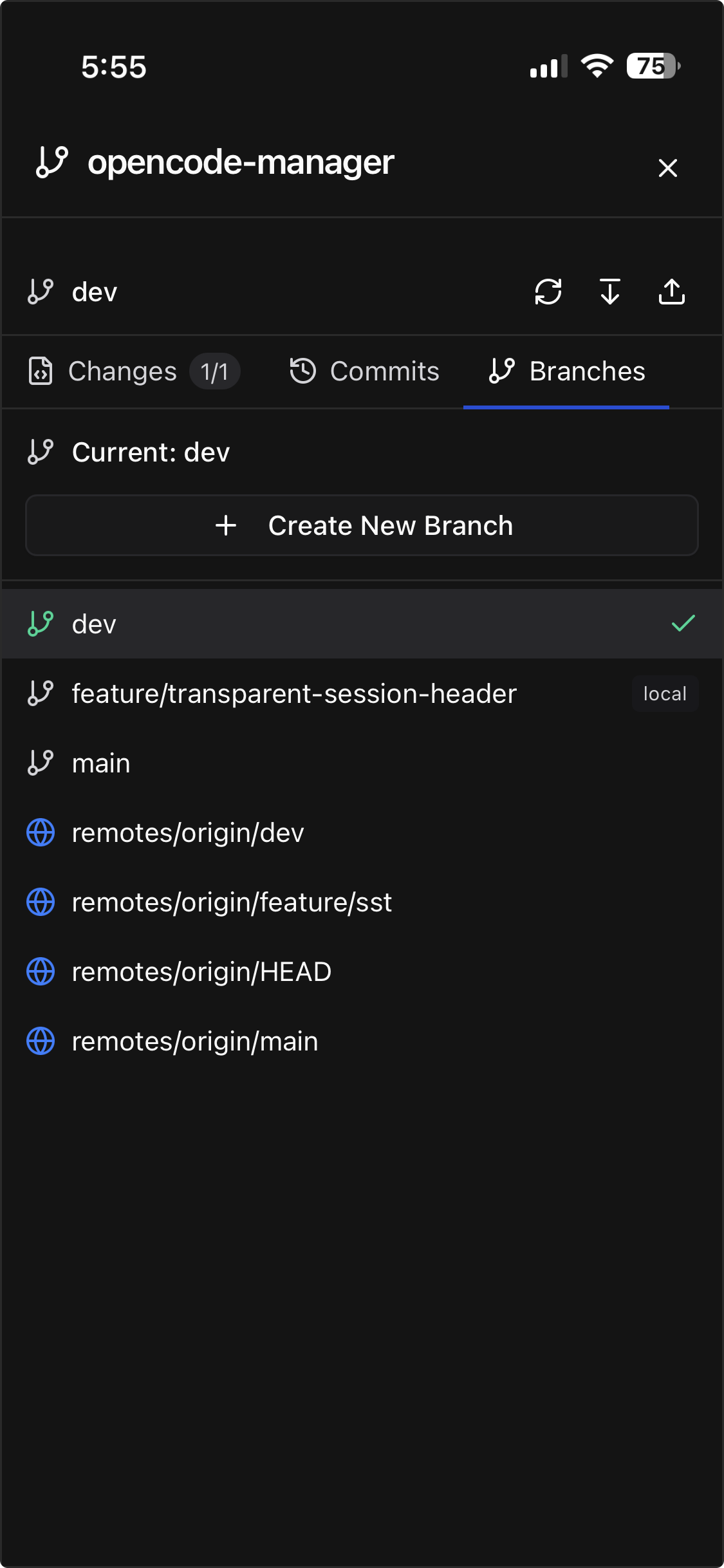
- List all local and remote branches
- Create new branches from current HEAD
- Switch branches (checks out the branch)
- Delete local branches
Diff Viewer
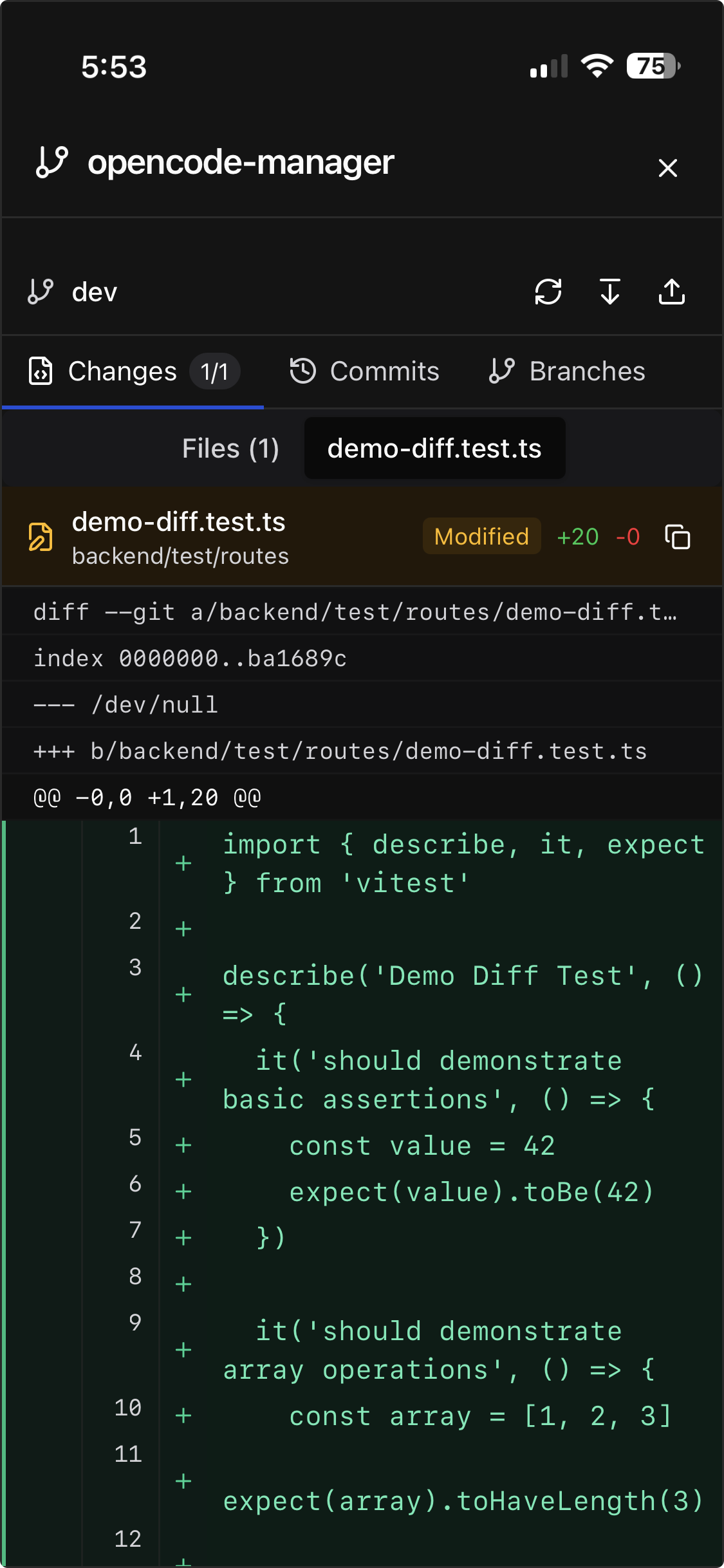
View file changes with a unified diff format:
- Line Numbers - Both old and new line numbers displayed
- Syntax Highlighting - Code is highlighted based on file type
- Change Markers - Additions in green, deletions in red
- Change Counts - Summary of lines added/removed
Accessing Diffs
- Click any changed file in the Source Control panel
- Diffs appear inline or in a modal depending on context
- Use the expand/collapse toggle for large diffs
Repository Actions
Pull
Fetch and merge remote changes:
- Select a repository
- Click the Pull button
- Changes are fetched and merged
Fetch
Download remote changes without merging:
- Select a repository
- Click the Fetch button
- Remote tracking branches are updated
Delete Repository
Remove a repository from the workspace:
- Select a repository
- Click Delete
- Confirm deletion
Ahead/Behind Tracking
The UI shows your branch's relationship to its remote:
- ↑ N - You have N commits not pushed to remote
- ↓ N - Remote has N commits you haven't pulled
- ↑ N ↓ M - Both local and remote have diverged