MCP Servers
Configure Model Context Protocol (MCP) servers to extend AI capabilities.
What is MCP?
MCP (Model Context Protocol) allows AI models to interact with external tools and data sources. Servers provide:
- Tools - Functions the AI can call
- Resources - Data the AI can access
- Prompts - Pre-defined prompt templates
Adding Servers
Local Servers (Command-based)
Local servers run as processes on your machine:
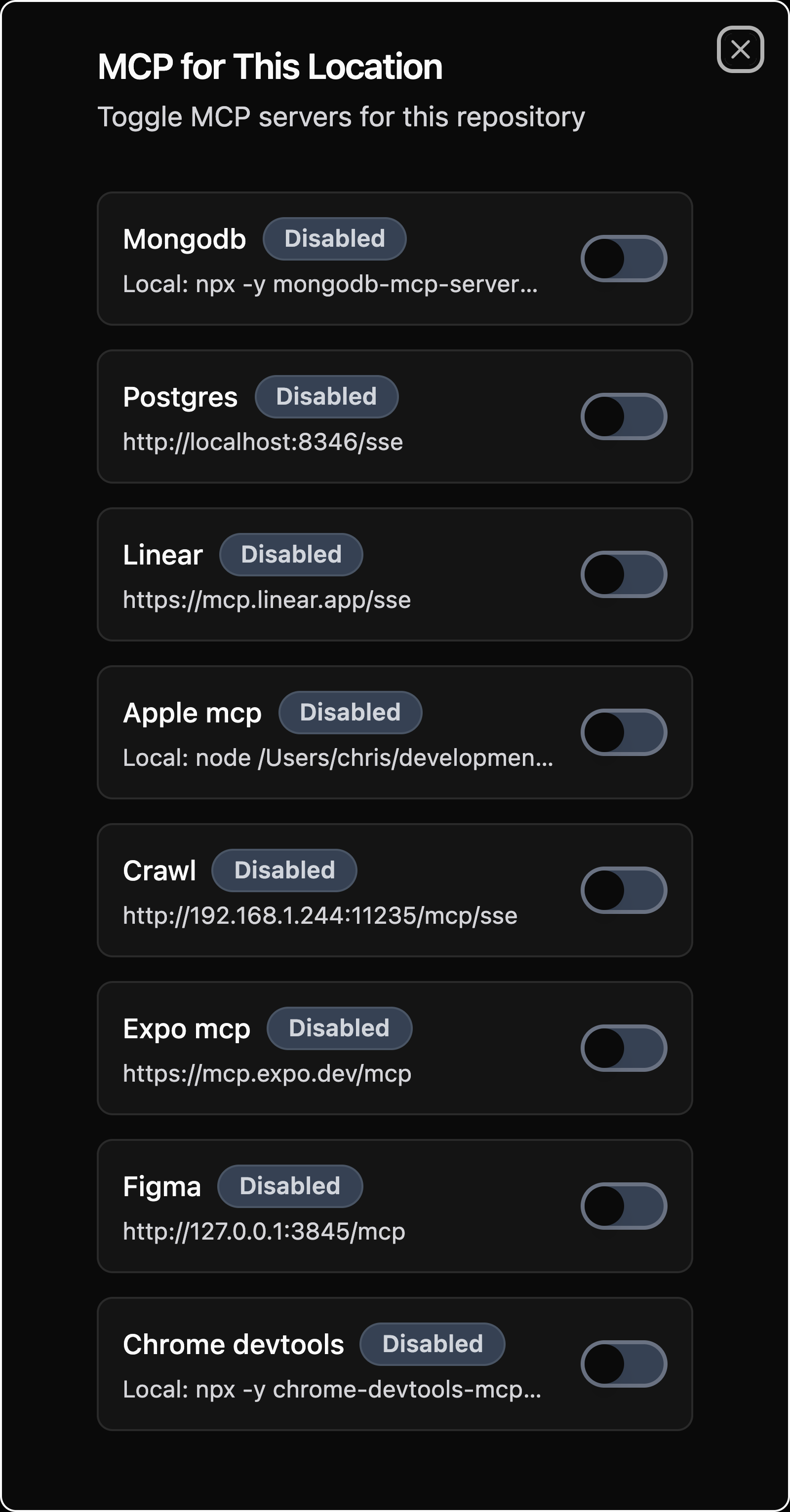
- Open a repository and click MCP in the sidebar
- Click Add Server
- Select Local
- Configure:
{
  "name": "filesystem",
  "command": "npx",
  "args": ["-y", "@modelcontextprotocol/server-filesystem", "/workspace"]
}
| Field | Description |
|---|---|
name |
Unique identifier |
command |
Executable to run |
args |
Command arguments |
env |
Environment variables (optional) |
Remote Servers (HTTP)
Remote servers are accessed over HTTP/SSE:
- Go to Settings > MCP Servers
- Click Add Server
- Select Remote
- Configure:
| Field | Description |
|---|---|
name |
Unique identifier |
url |
Server SSE endpoint |
headers |
HTTP headers (optional) |
Server Templates
Pre-built configurations for common MCP servers:
Filesystem
Access local files and directories:
{
  "name": "filesystem",
  "command": "npx",
  "args": ["-y", "@modelcontextprotocol/server-filesystem", "/path/to/dir"]
}
GitHub
Interact with GitHub repositories:
{
  "name": "github",
  "command": "npx",
  "args": ["-y", "@modelcontextprotocol/server-github"],
  "env": {
    "GITHUB_TOKEN": "your-token-here"
  }
}
PostgreSQL
Query PostgreSQL databases:
{
  "name": "postgres",
  "command": "npx",
  "args": ["-y", "@modelcontextprotocol/server-postgres"],
  "env": {
    "DATABASE_URL": "postgres://user:pass@host:5432/db"
  }
}
Brave Search
Web search capabilities:
{
  "name": "brave-search",
  "command": "npx",
  "args": ["-y", "@modelcontextprotocol/server-brave-search"],
  "env": {
    "BRAVE_API_KEY": "your-api-key"
  }
}
Managing Servers
Enable/Disable
Toggle servers on/off:
- Go to Settings > MCP Servers
- Find the server
- Click the toggle switch
Disabled servers won't be started or connected.
Delete Server
Remove a server:
- Click the Delete button
- Confirm deletion
Refresh Status
Use the refresh button in Settings > MCP Servers to reload the current connection status after changing a server outside the UI or completing OAuth.
Server Status
Monitor server health:
| Status | Description |
|---|---|
| Connected | Server is active and connected |
| Disabled | Server is configured but disabled |
| Auth Required | Remote server needs OAuth authentication |
| Registration Required | Remote server needs OAuth client registration |
| Failed | Server failed to start or connect |
Tool Permissions
The MCP server manager adds, toggles, authenticates, and deletes server configurations. Tool access is controlled by the active OpenCode configuration and any custom agent configuration, not by a separate global MCP permission mode in this screen.
Troubleshooting
Server Won't Start
- Check the command is installed:
npx -y @modelcontextprotocol/server-<name> - Verify environment variables are set
- Check the displayed status error
- Try running the command manually
Tools Not Appearing
- Verify server status is "Connected"
- Check server provides the expected tools
- Refresh server status
- Check AI model supports tool use
Connection Issues
For remote servers:
- Verify URL is correct
- Check network connectivity
- Verify authentication headers
- Check server is running and accessible